Payment Platform
The Payment Platform (via Nearpay) lets merchants track everything related to electronic payment operations in the EasyPay app — from logging in, reviewing financial reports, and managing point-of-sale devices, to tracking every payment transaction in detail and reconciling (balancing) daily collected amounts.
1. Logging in
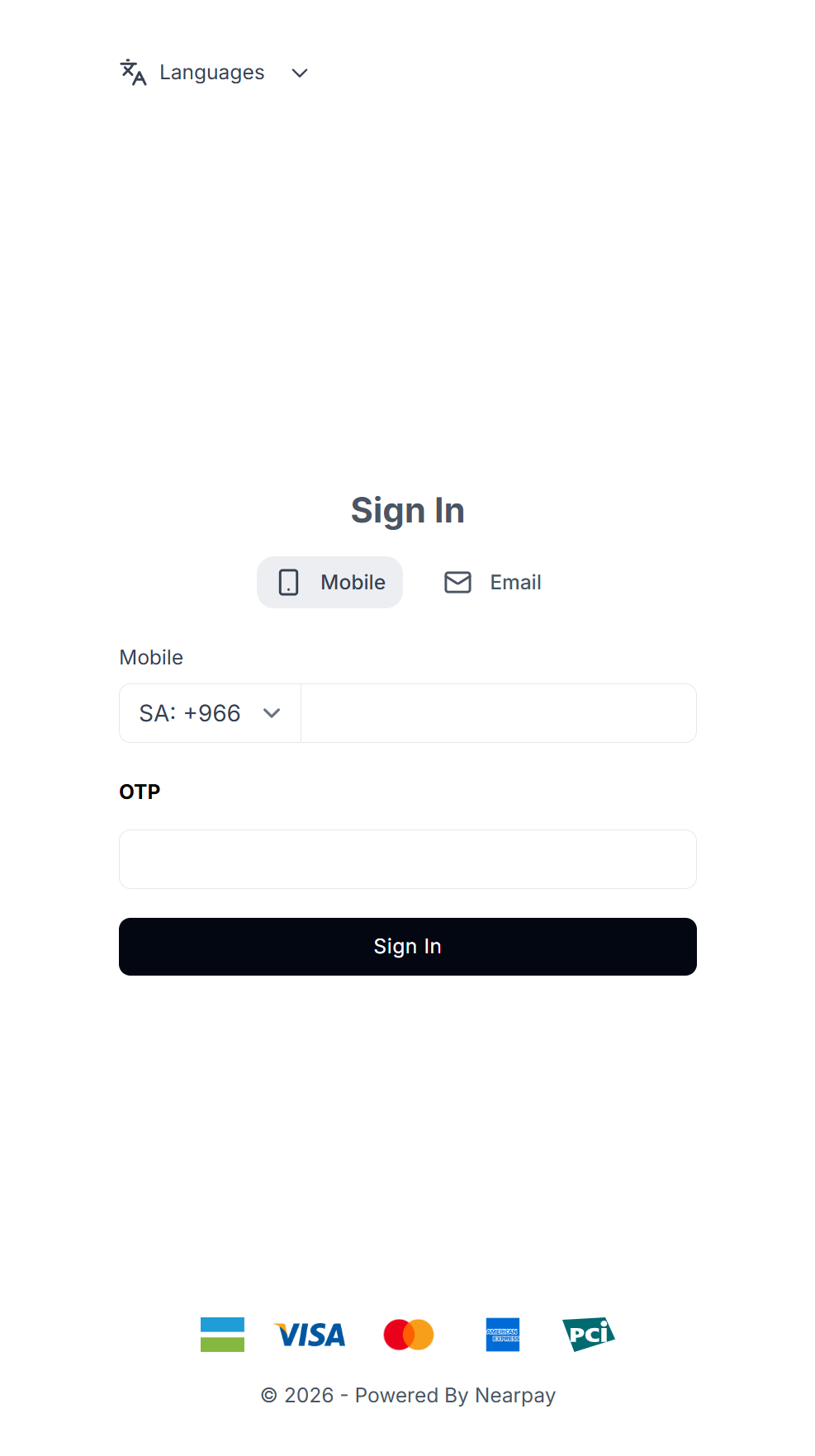
Access to the Nearpay platform is via mobile number or email address:
Choose the login method (mobile number or email) at the top of the screen.
Enter your mobile number or email address, then tap “Log In”.
Enter the verification code sent to your mobile number or email, then tap “Log In” again to complete the login.
2. Reports dashboard
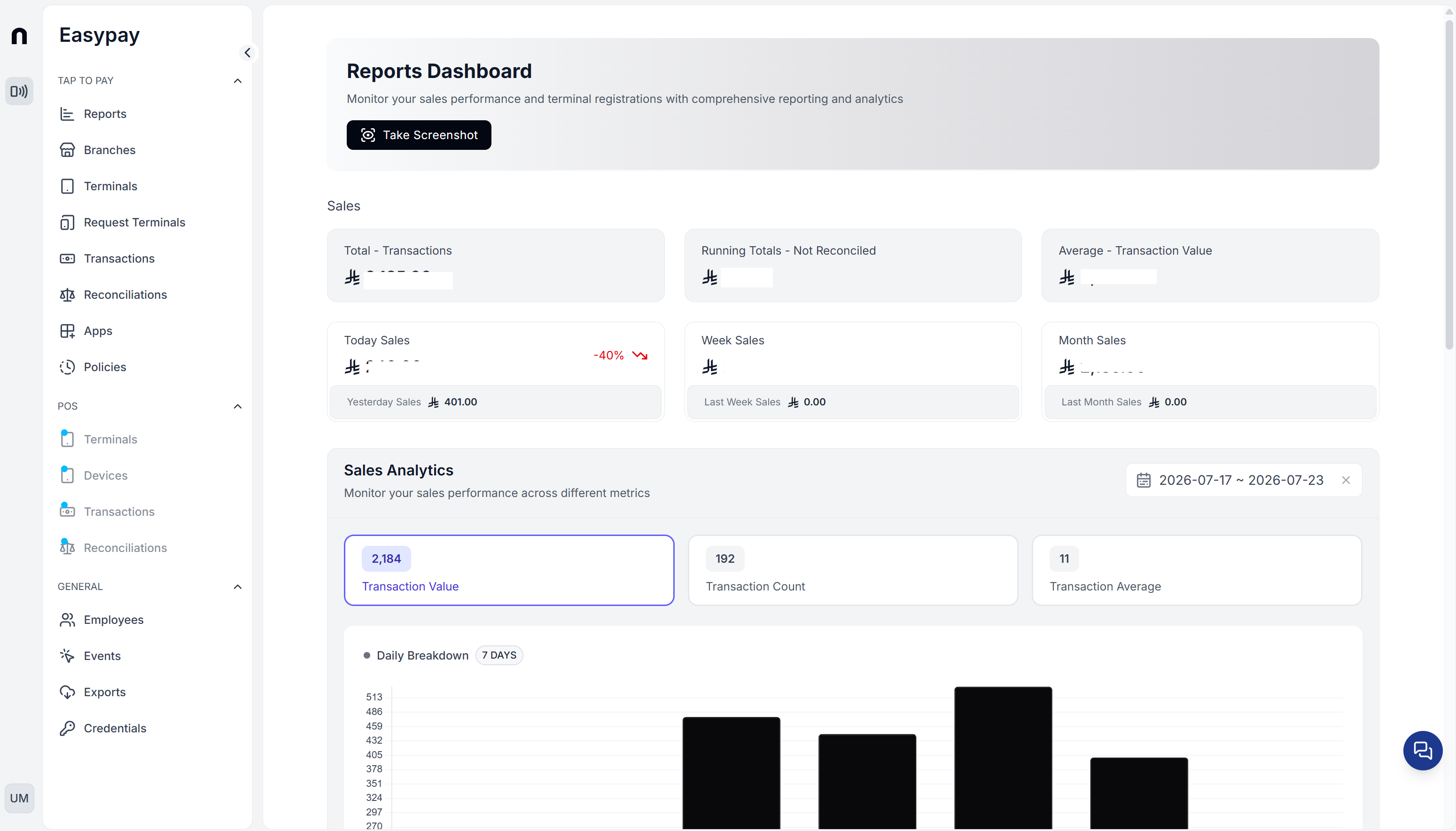
The reports dashboard displays sales performance for all points of sale in one place:
Quick indicators at the top of the page: total transactions, average transaction value, outstanding transactions pending reconciliation, and sales for the day, week, and month.
The “Transaction Analytics” section: filter by a specific date range; it shows the average transaction value, the transaction count, and the total value.
A chart showing the daily sales breakdown for the last 7 days.
3. Points of sale
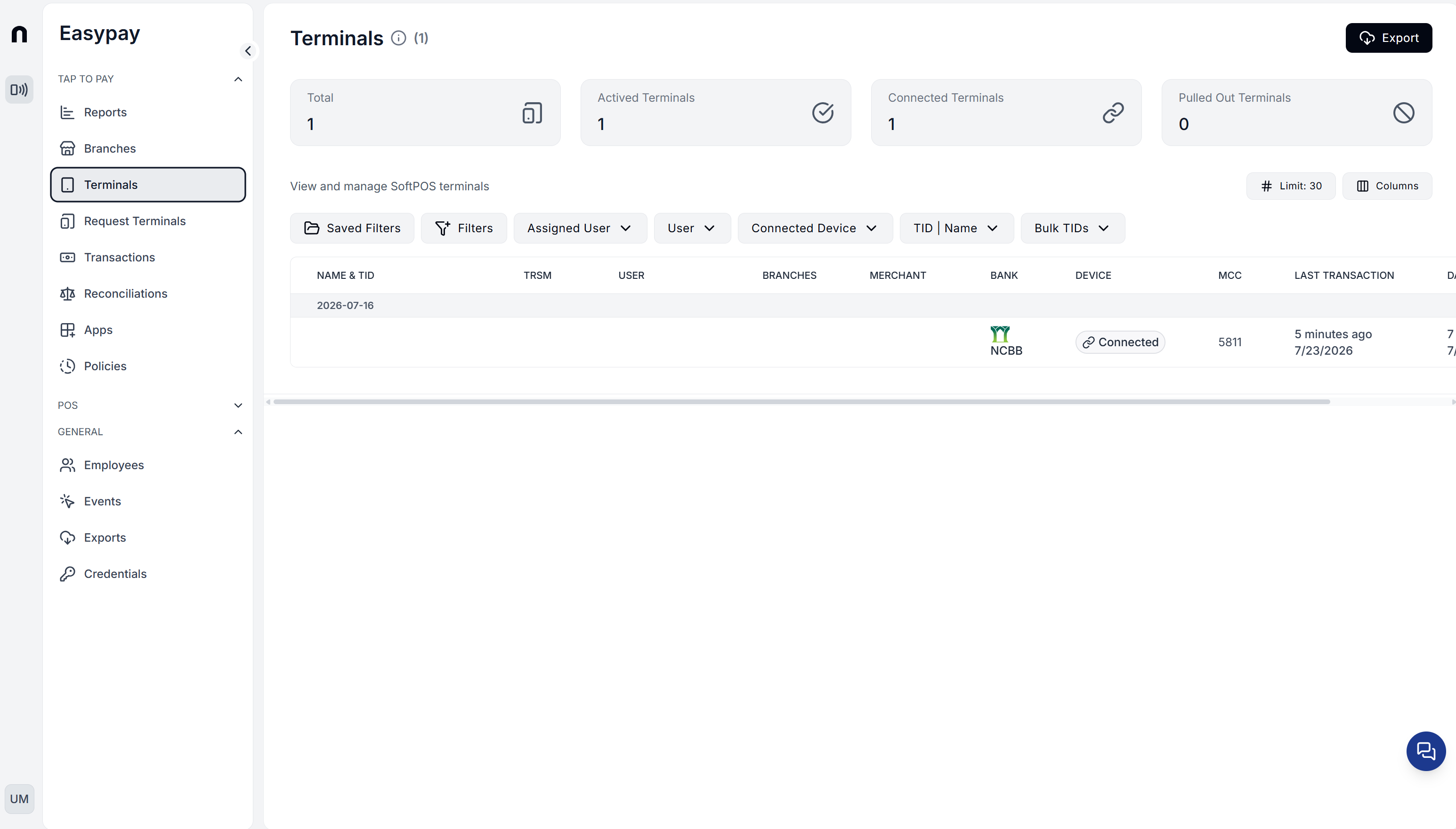
From the “Points of Sale” side menu, you can view all payment devices linked to the business:
Cards at the top of the page summarize: retrieved, linked, and activated points of sale, plus the total.
A table showing each device: name and point-of-sale number, TRSM, user, branch, merchant, and bank.
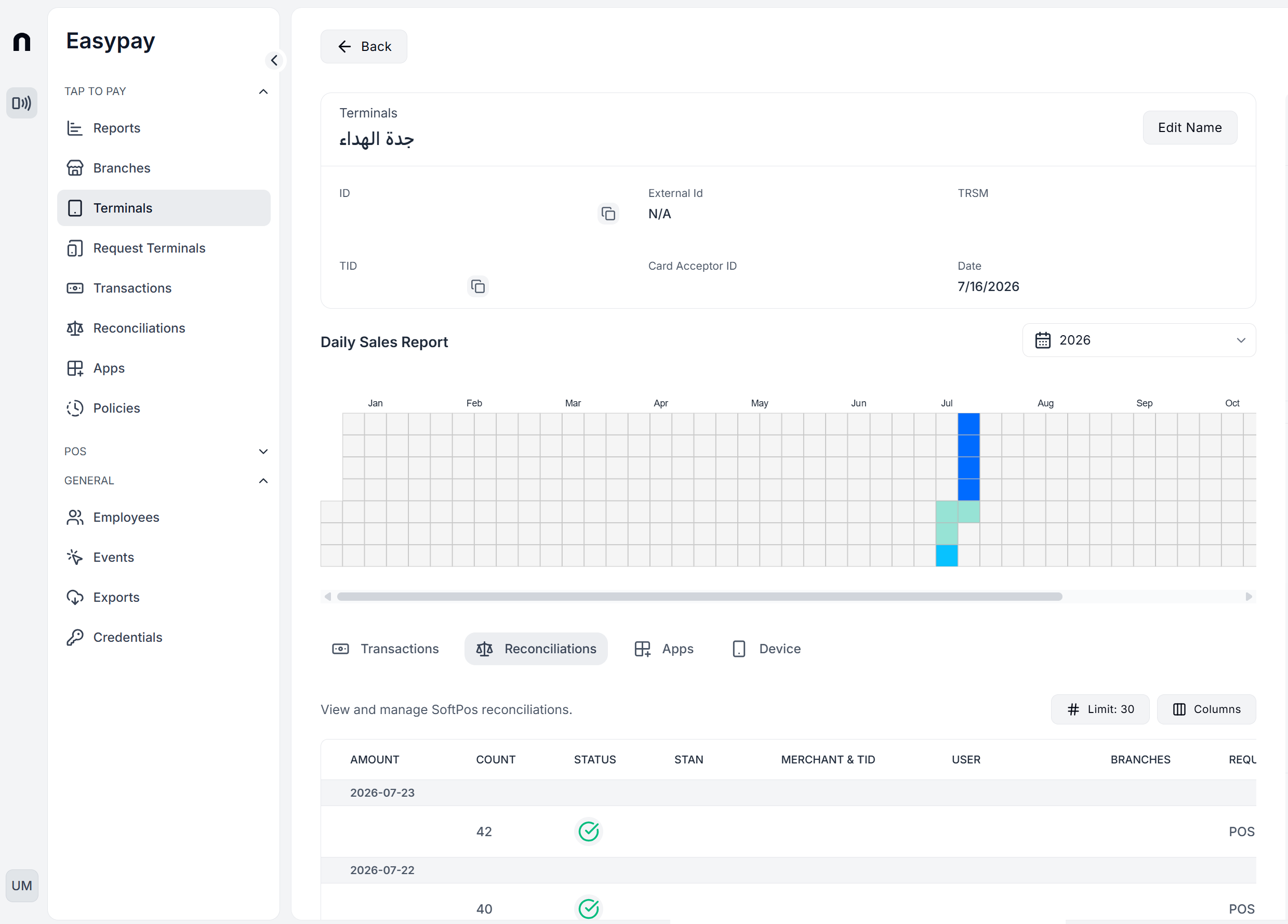
Tapping any device opens its details page: the ID number, a printable card ID, the point-of-sale number, and a daily sales report shown as an annual heat map.
From the device page, you can switch between the “Transactions” and “Reconciliation” tabs specific to that device, or edit the device name.
4. Operations
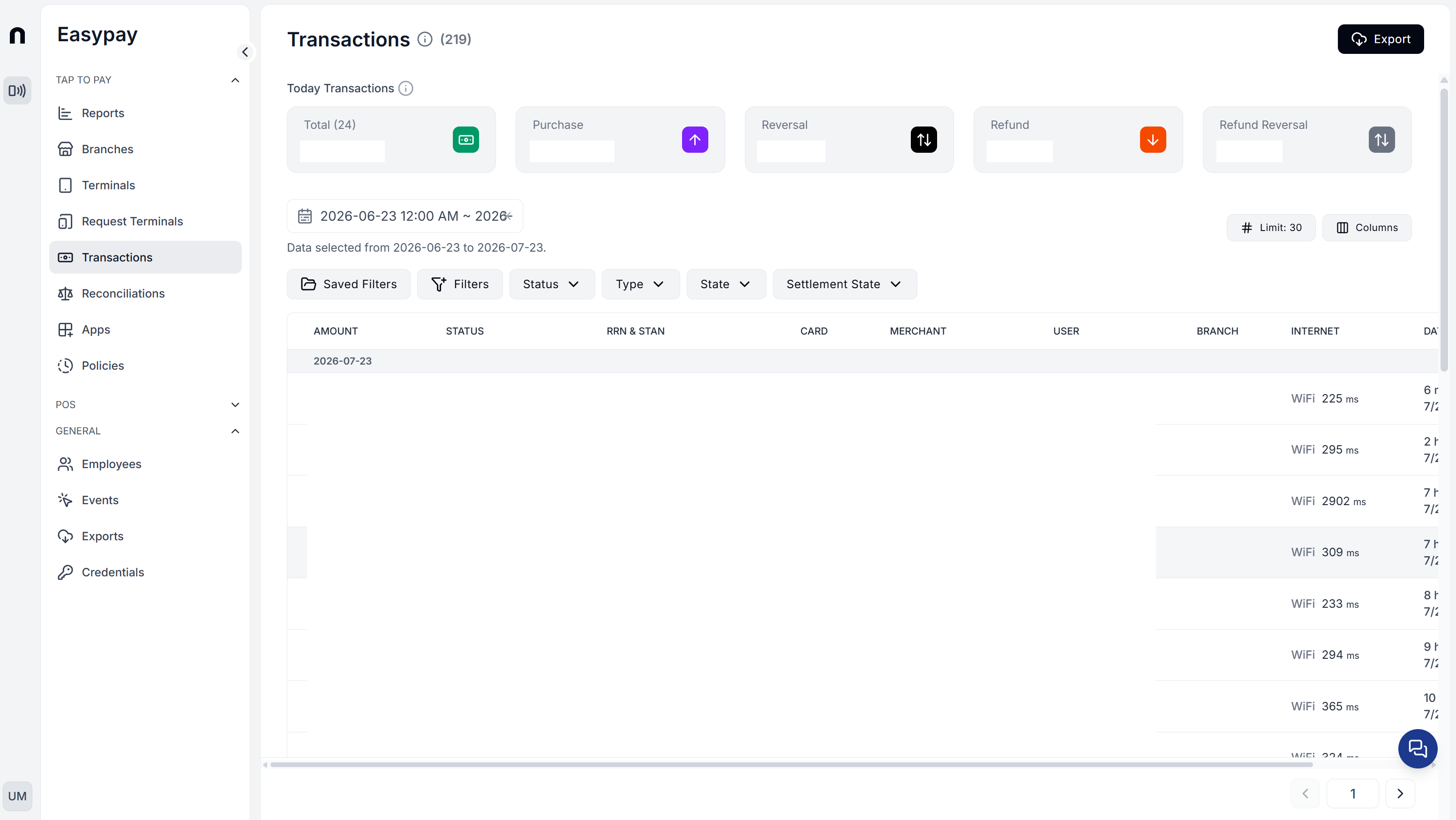
The “Operations” list displays every payment transaction across all devices in one place, with filtering and export options:
Each row shows: the date, connection type (such as WiFi), merchant, card used, transaction status, and value.
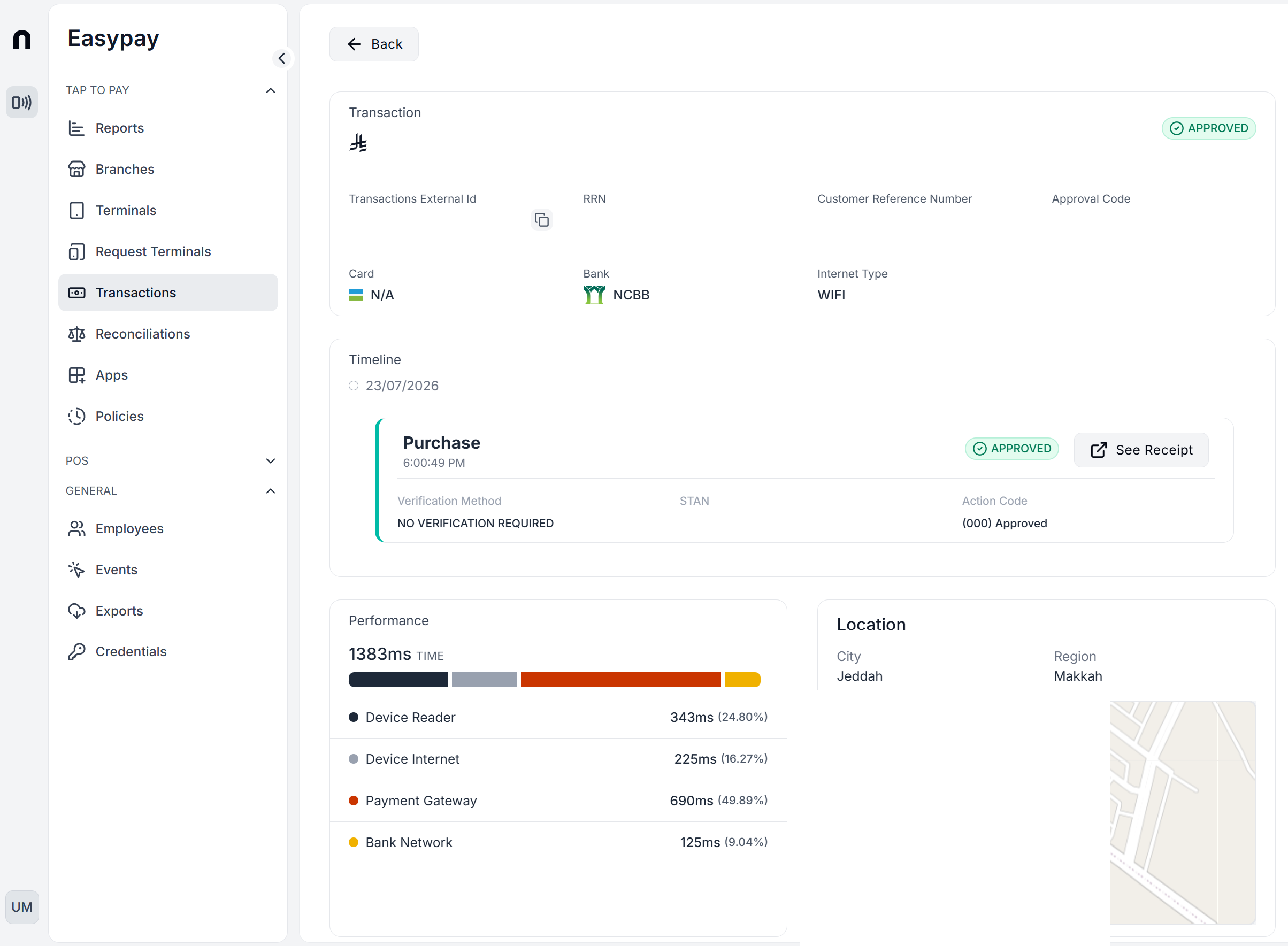
Tapping any transaction opens its full details: the reference number (RRN), approval code, bank, and card type.
The transaction timeline shows the purchase time and the reconciliation (matching) time separately, with a button to view the transaction’s invoice/receipt.
The “Performance” section shows the transaction’s processing time in milliseconds, broken down into four stages: card reading, device internet connectivity, payment gateway, and bank network — useful for pinpointing where a delay is occurring.
It shows the geographic location (city and region) where the transaction took place.
5. Reconciliation
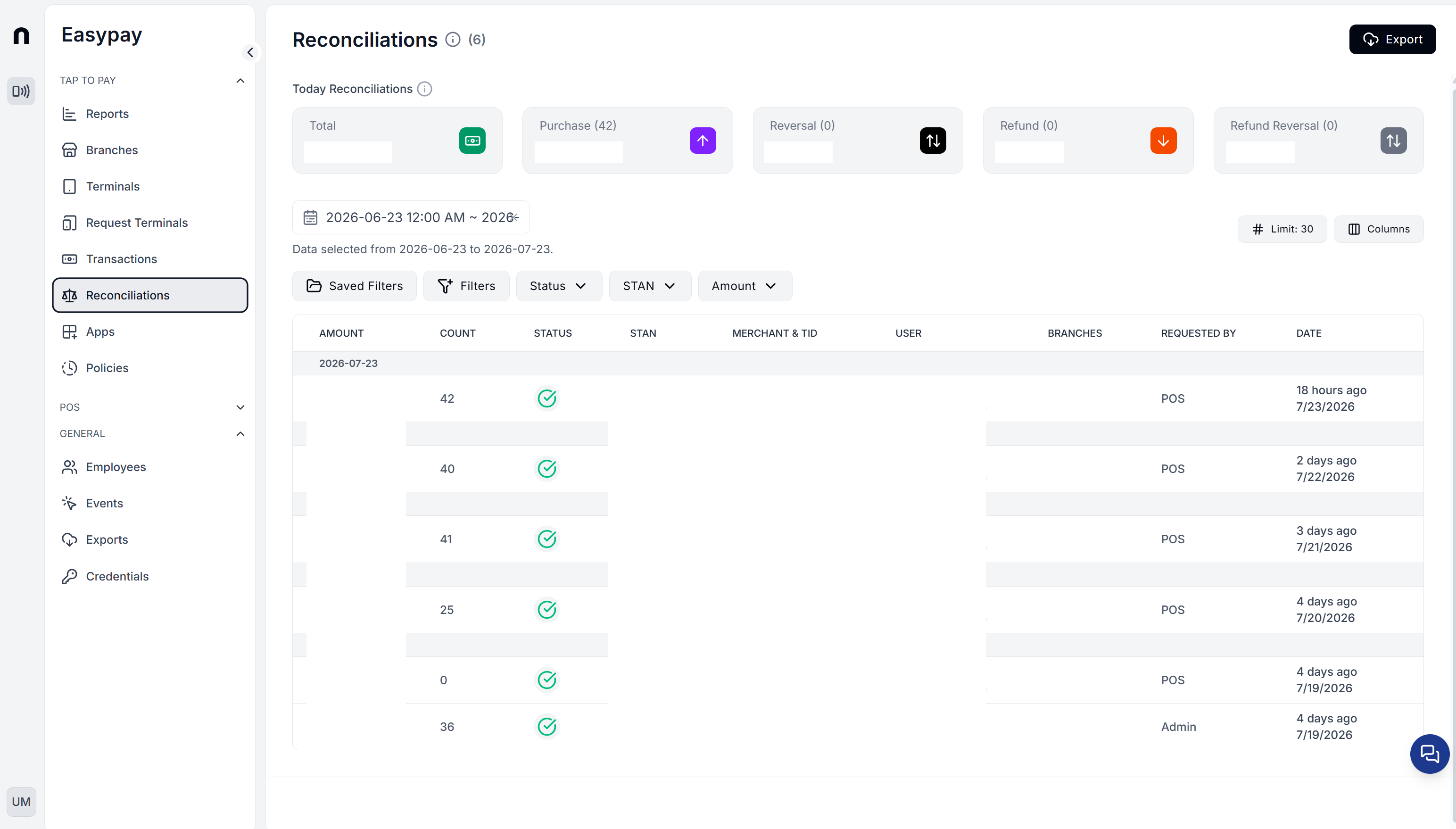
Reconciliation is a daily matching process between the amounts actually collected and what the platform records, for each point-of-sale device:
The reconciliations list shows, for each day:the number of transactions and their total value, and the reconciliation status.
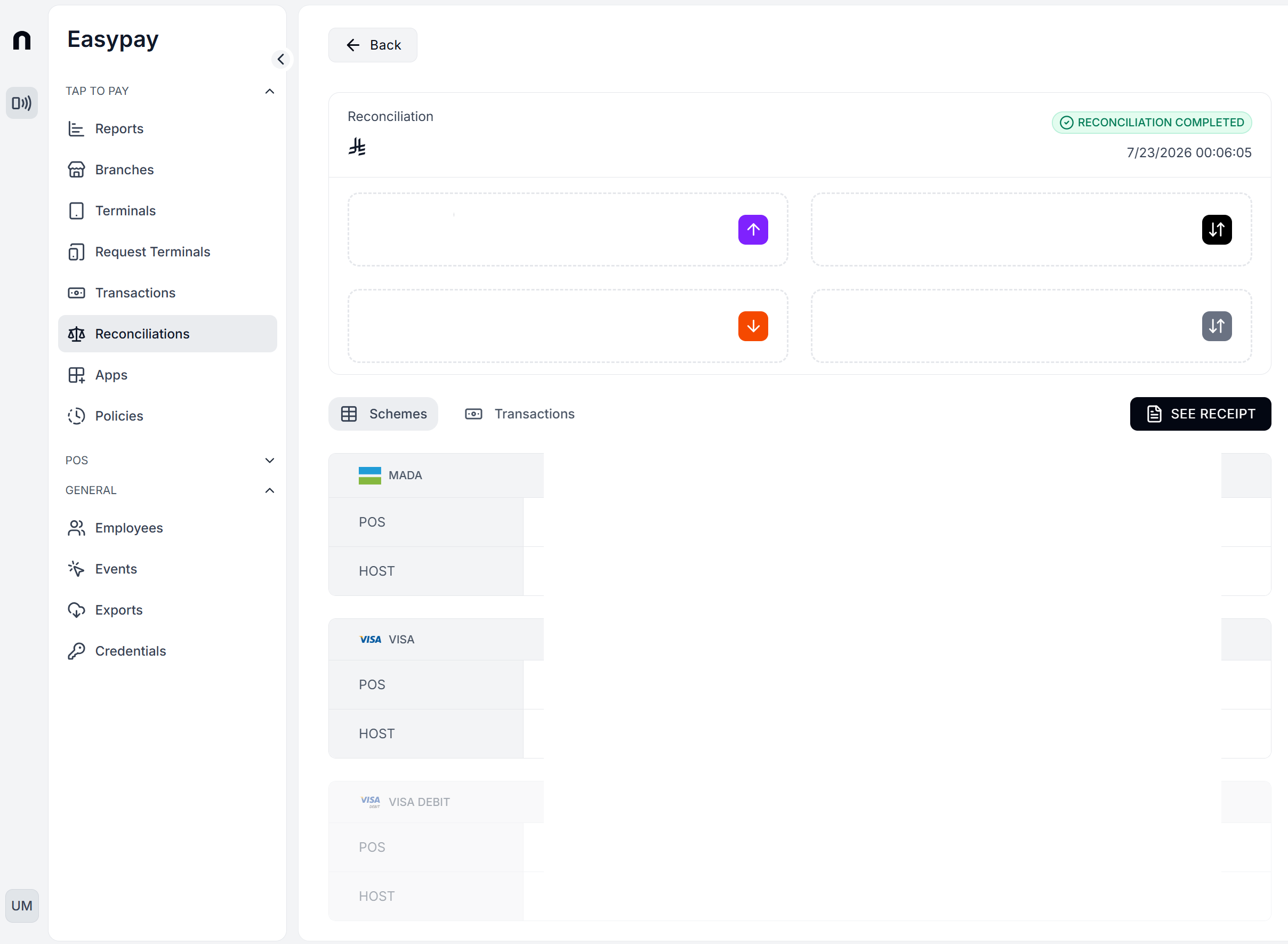
Tapping a specific reconciliation opens a full breakdown: the purchase and refund amounts, and the reversal of each, if any.
Additional details by card type (mada, Visa, Visa Debit, Mastercard), comparing what the point-of-sale device recorded against what each card network’s server recorded.
A “View Invoice” button to display the receipt for any transaction within the reconciliation, and a tab for switching between “Operations” for this reconciliation and “Schemes” details.