

Attributes
An attribute is the option that product variants branch out from — such as size or add-ons. An attribute is defined once here, then used across any number of products.
The attribute is defined here, while linking it to a specific product and choosing which values apply is done from the product's own page in the Products section.
Browsing attributes
The screen shows a table of the attributes you have defined:
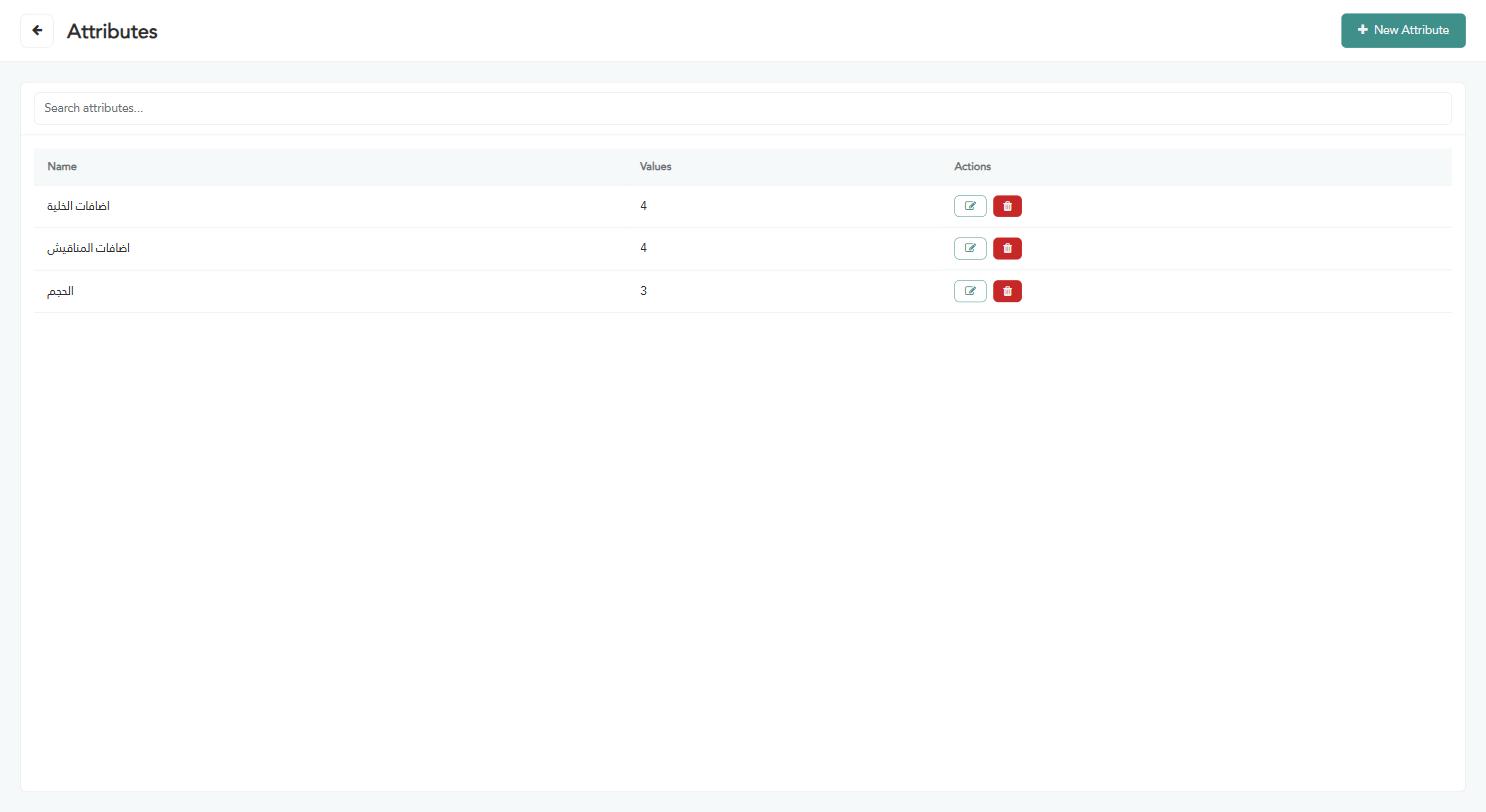
Name — the attribute name as it appears when adding it to a product.
Values — the number of options defined under this attribute.
Actions — edit or delete the attribute.
Creating a new attribute
Click “New attribute”. The following window appears; fill in the fields according to the instructions below:
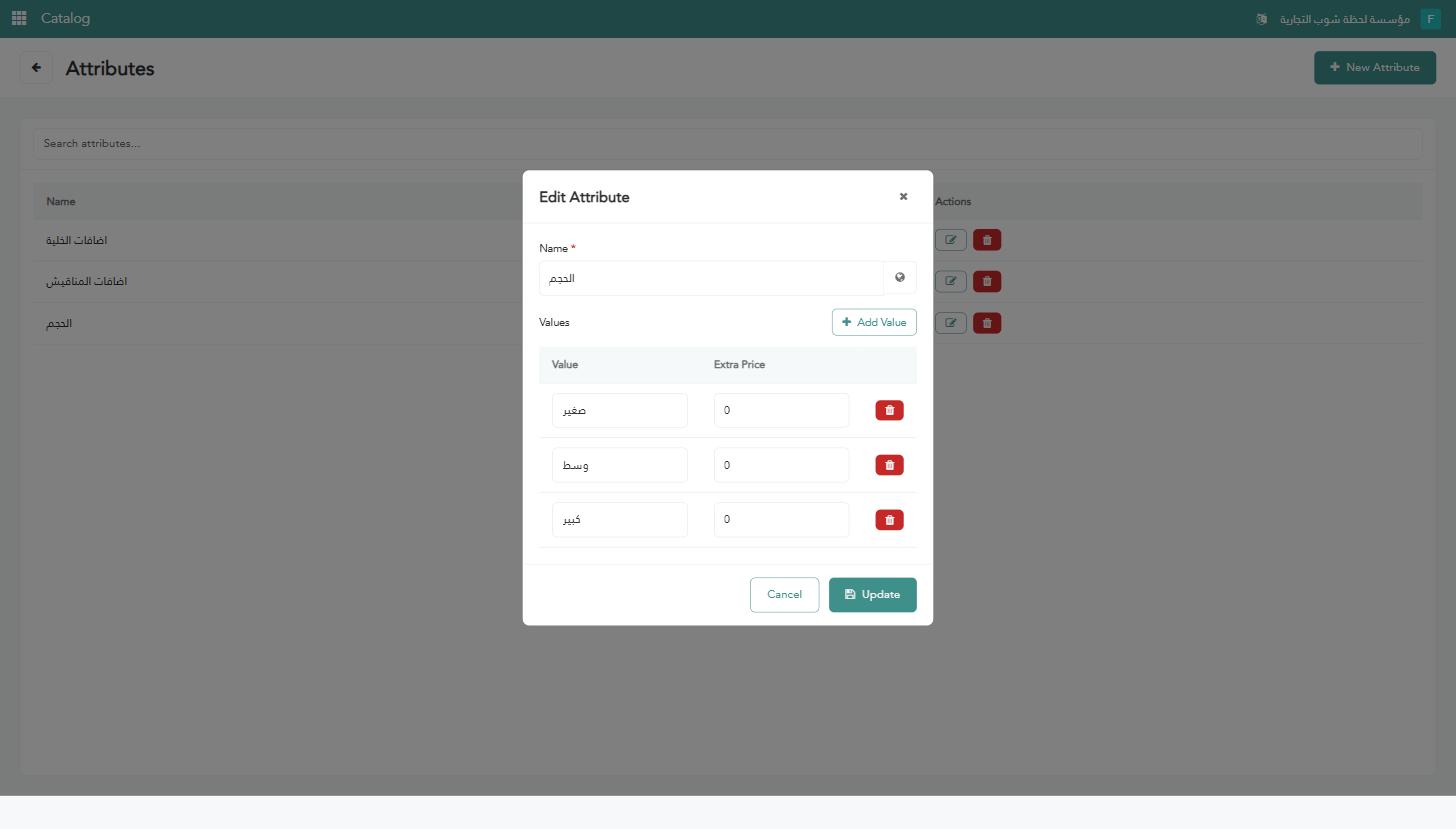
“Name” (required) — the attribute name (for example: Size).
The translation button beside the name — to enter the attribute name in another language, so it shows to the cashier according to the device language.
Click “Add value” to add a new row to the values table.
“Value” — the option name (for example: Small).
“Extra price” — the amount added to the product's base price when this value is chosen; leave it at zero if the option carries no price difference. Repeat for the remaining values, and use the bin icon to remove any row.
Click “Create” to save the attribute.
The extra price is added to the product price, it does not replace it. So if the product costs 10 and the “Large” value has an extra price of 2, Large costs 12.
Editing or deleting an attribute
In the “Actions” column, click the edit icon to open the same window and change the name, values or extra prices, then click “Update”.
The red bin icon deletes the attribute entirely.
Warning: Deleting an attribute or one of its values affects every product linked to it and their variants. Review the products using it before deleting.