

Employee Hub
The Employee Hub is where the data of everyone working at the point of sale is managed: their name, their personal login code (PIN), and their default salary. This is also where you decide who is allowed to access each branch.
Why use the Employee Hub?
Register each employee with their own name and login code, so you can tell who carried out each sale.
Set a default salary for each employee, including allowances and bonuses.
Take an employee out of service (archive) without deleting their record or their past transaction history.
Decide which employees are allowed into each branch from the Branches page.
How to access the Employee Hub
From the system's home page, click the “Employee Hub” icon to open the section directly.
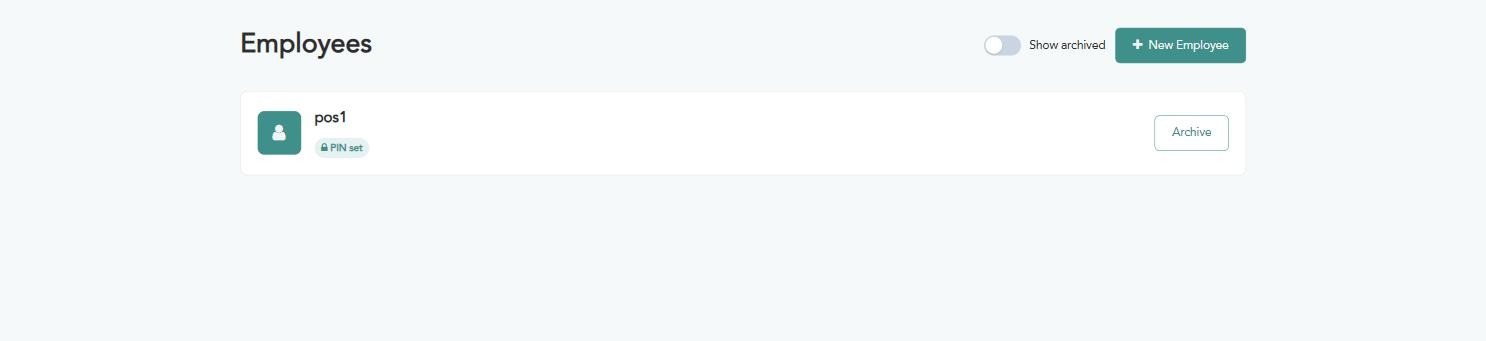
The list of current employees appears as cards.
1. Browsing employees
Employee card — shows the employee's name, and a badge showing whether a PIN has been set for them.
“Show archived” switch — turn it off to show only active employees, or on to also show archived ones.
“New employee” button — to add a new employee.
2. Creating a new employee
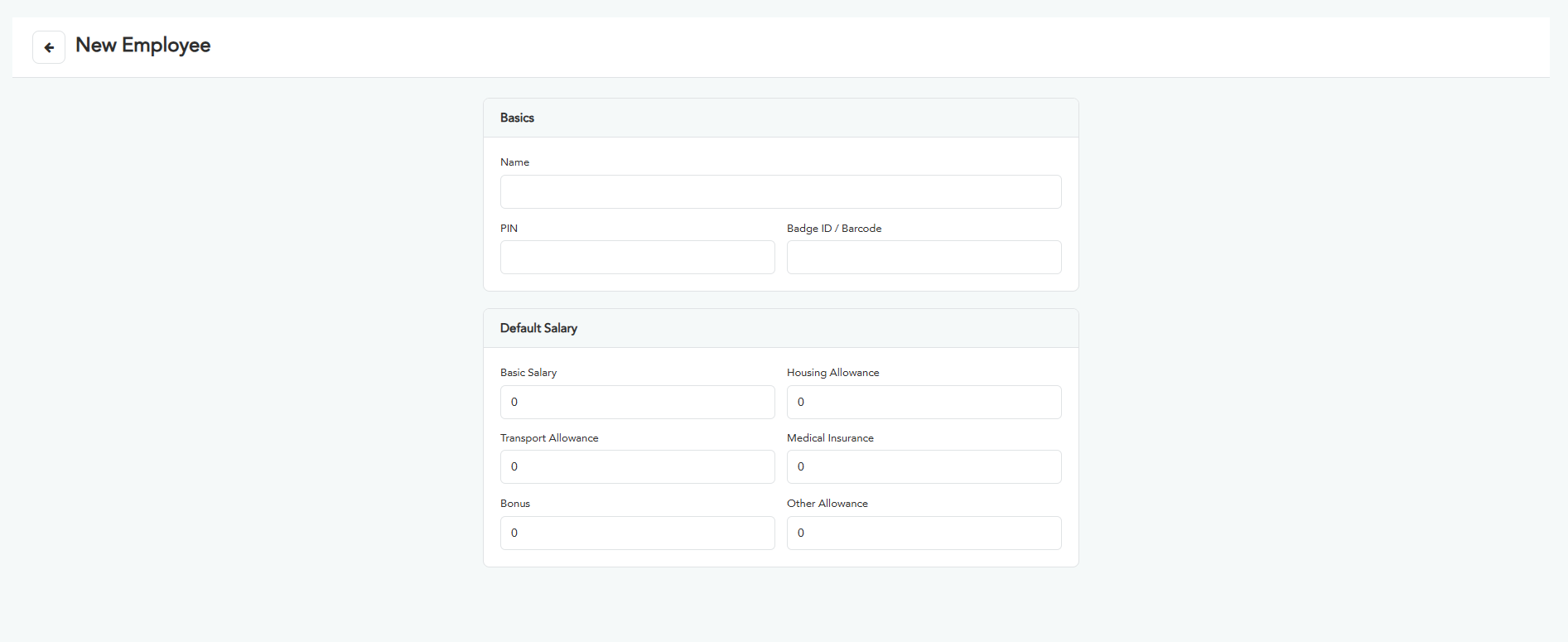
Click “New employee”. The following screen appears; fill in the fields according to the instructions below:
Basics
“Name” (required) — the employee's name as it appears in the cashier app and in sales reports.
“PIN code” — the secret code the employee uses to log into the point of sale; it is masked while typing since it is sensitive data.
“Badge ID / Barcode” (optional) — a card number or barcode as an alternative login method instead of typing the code manually.
After setting the PIN, go to the Branches page and add this employee to the “Employees (basic access)” list of every branch you want them to access.
Default salary
These fields are used as a starting value when calculating the employee's salary; all are optional and default to zero:
“Base salary”
“Housing allowance”
“Transportation allowance”
“Medical insurance”
“Bonus”
“Other allowance”
Warning: These are default values and can be edited later — make sure they match the employee's contract before relying on them.
3. Editing an employee's details
Click the employee's card in the main list to open the edit screen. It has the same fields as creation plus:
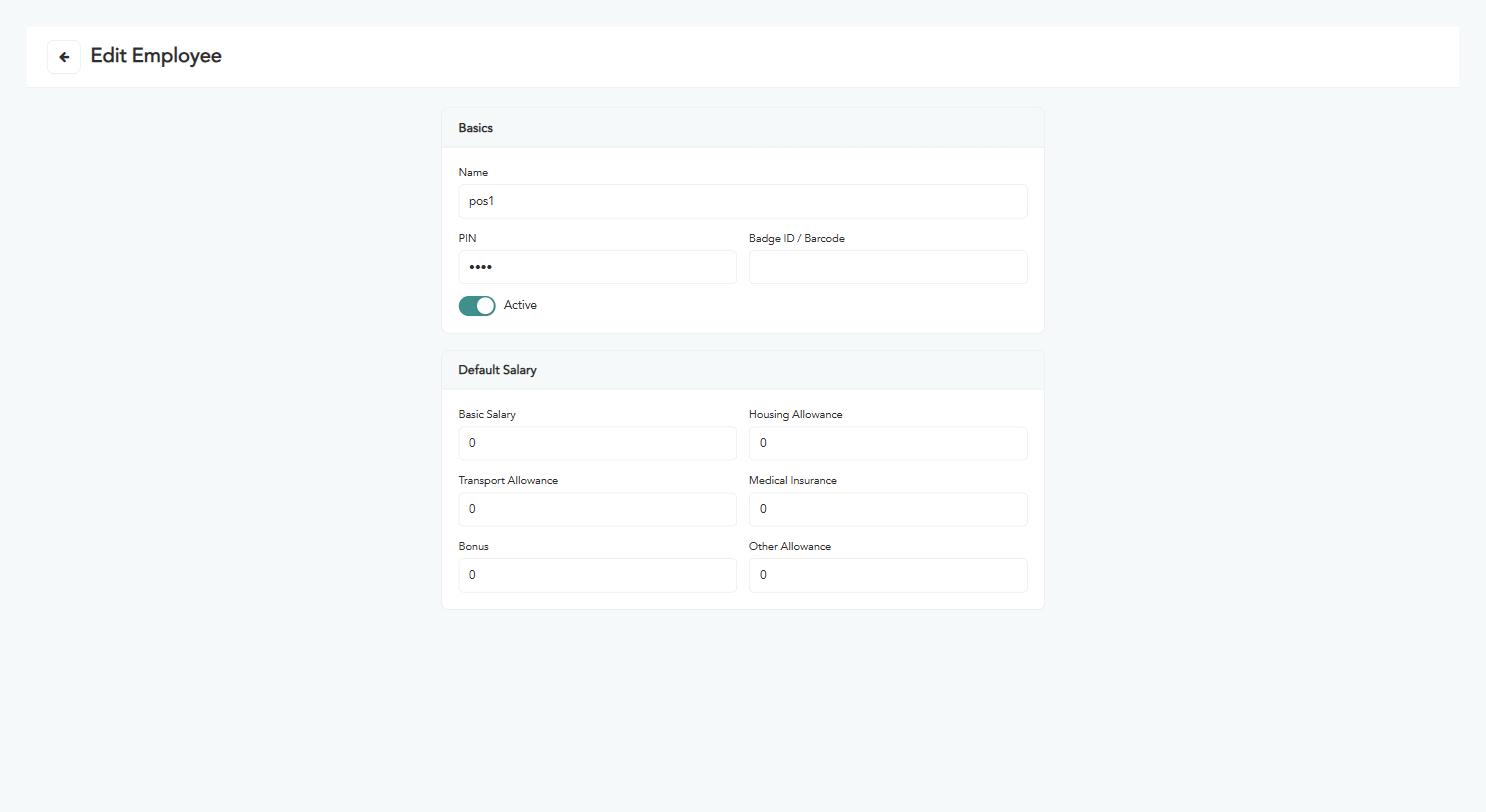
“Active” — a toggle showing whether the employee currently works here; it is turned off automatically when archived.
4. Archiving an employee
When an employee leaves, do not delete their card — archive it instead:
From the main list, click the “Archive” button on the employee's card.
The card disappears from the default list immediately.
To restore or review it later, turn on the “Show archived” switch at the top of the page.
Archiving does not delete the employee's record or their past point-of-sale transactions — it only hides them from current selection lists.