

Returning Products & Orders Screen
This guide documents the orders screen and returns flow in the EasyPay app — from opening the orders screen and reviewing paid invoices, to completing a product return.
1. Opening the orders screen
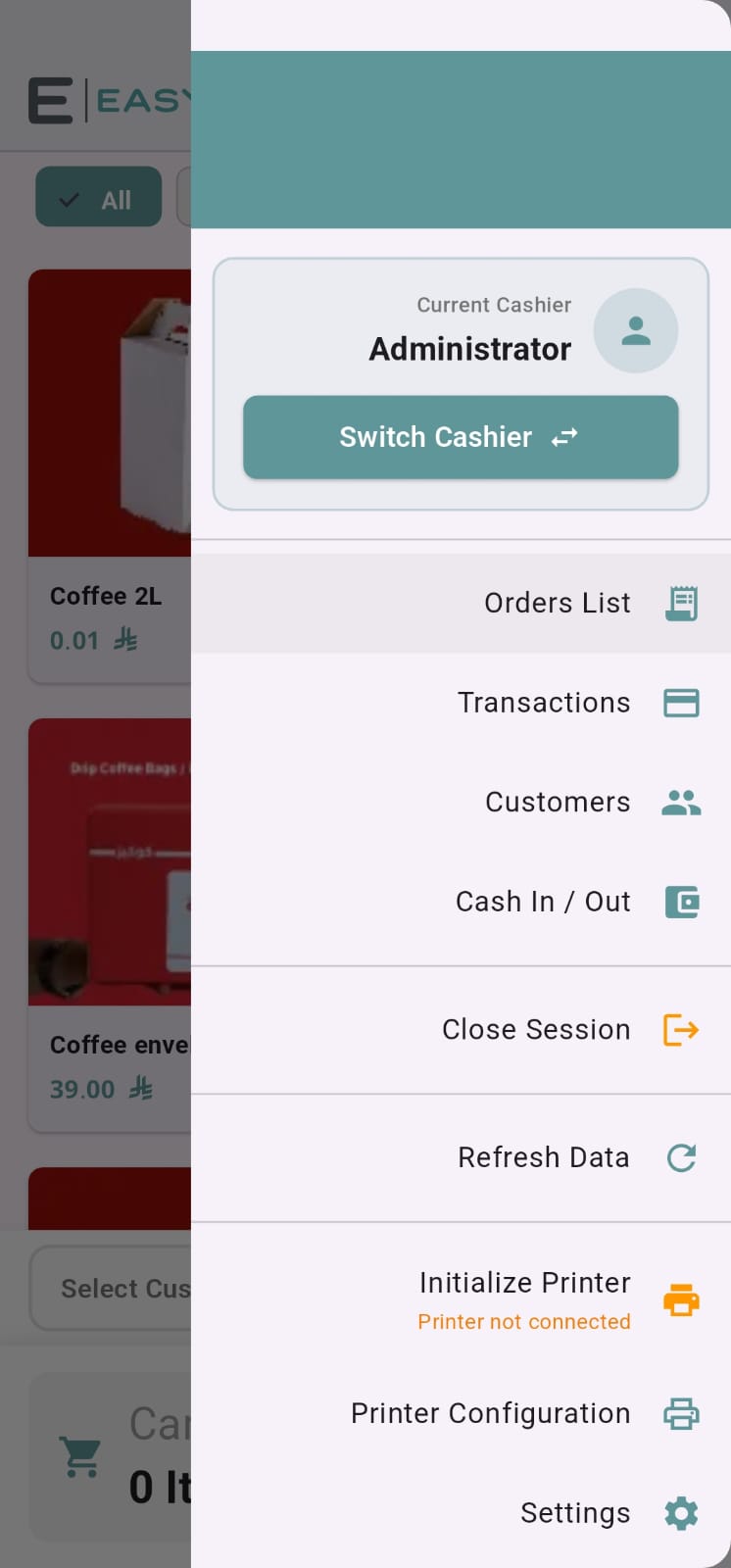
From the POS main screen, open the “Orders” screen to view the history of previous invoices. A search bar appears at the top (next to the title icon) for quick access to a specific invoice instead of scrolling the full list.
2. Reviewing paid invoices
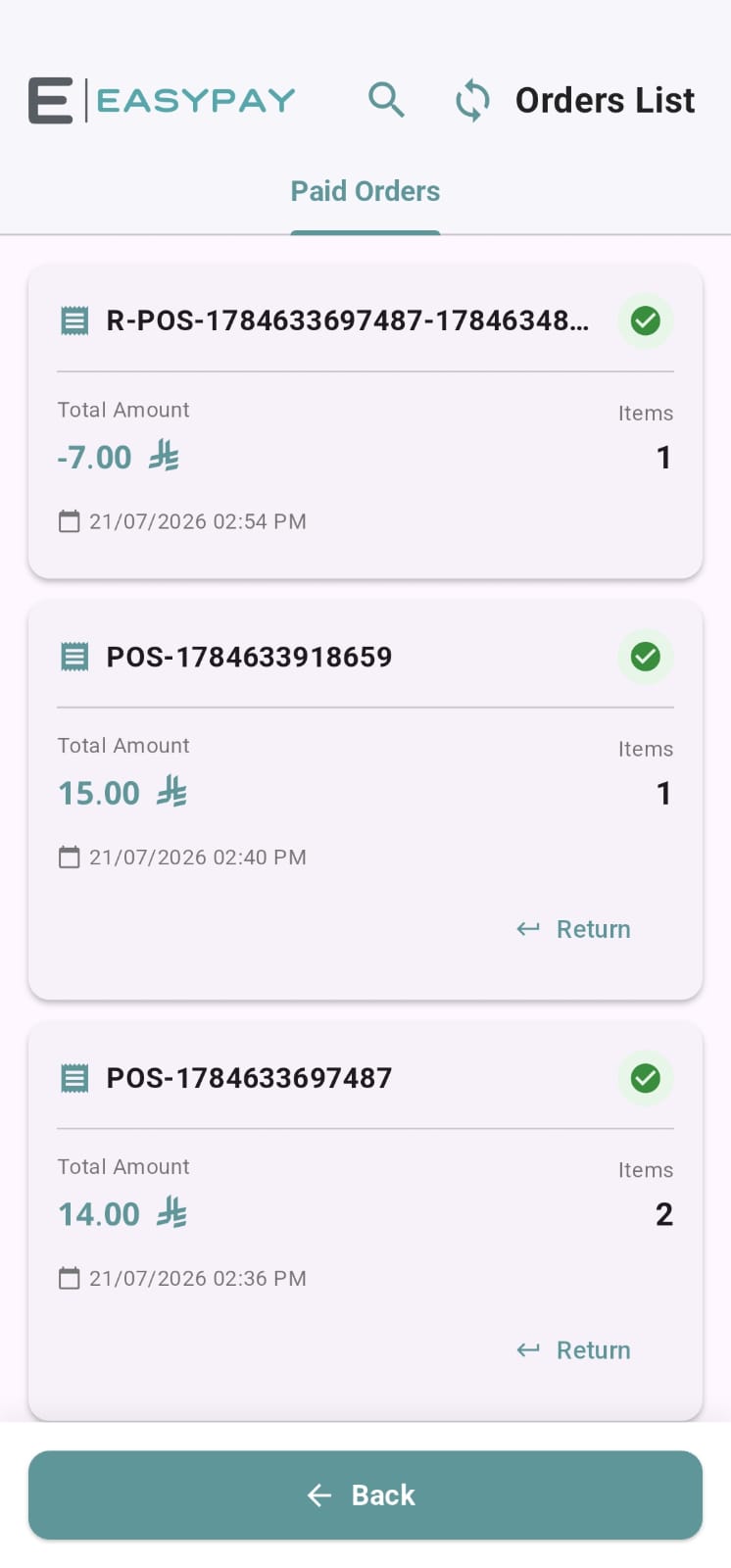
A sorted list of all paid invoices is shown, with the option to open any invoice to view its full details.
Invoice details include: products sold, quantities, payment method, and time.
3. Searching for a specific invoice
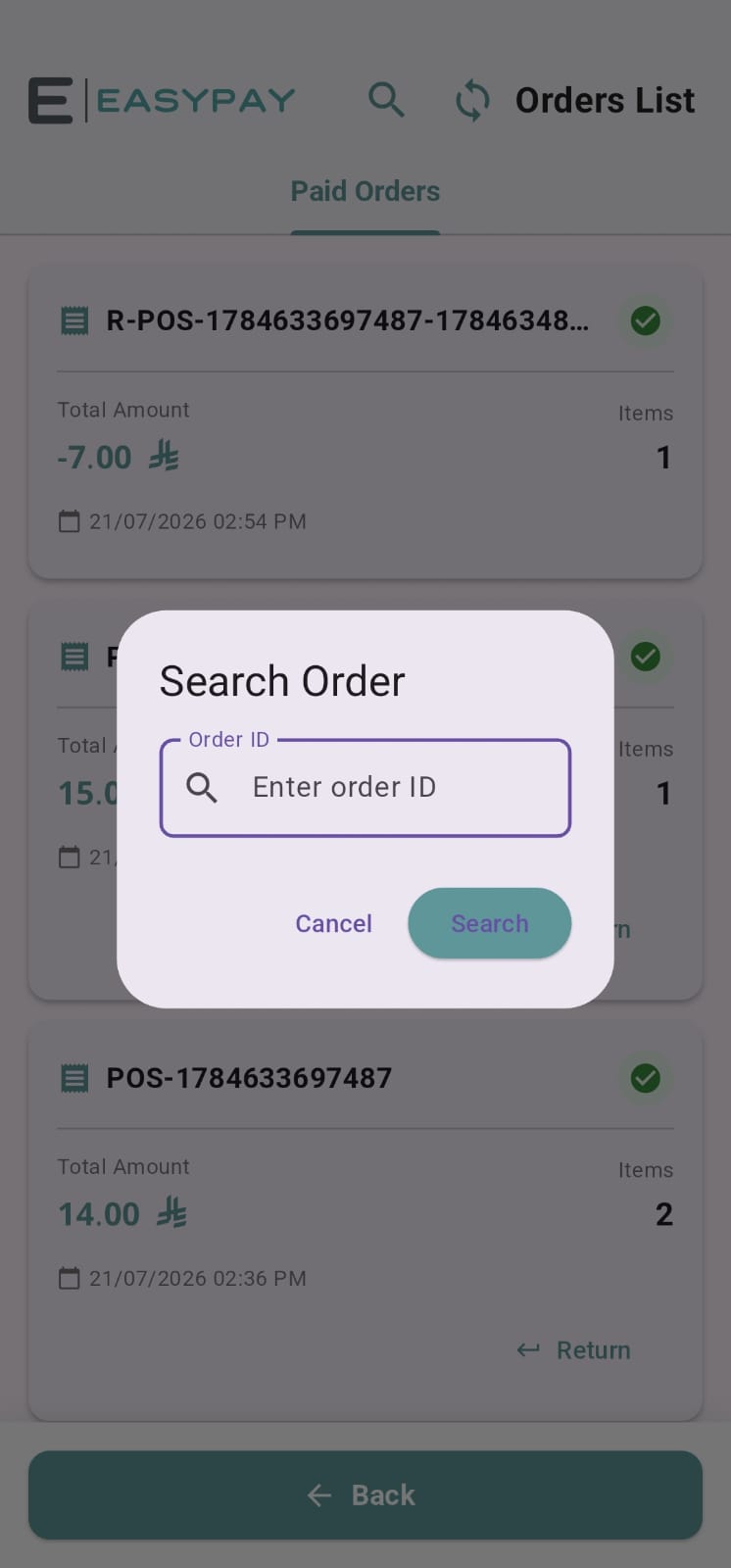
Tap the search icon at the top of the orders screen, then type the invoice number or part of it for quick access instead of scrolling the full list.
4. Returning a product from an invoice
To return one or more products from a previous invoice:
Open the required invoice from the orders screen (or search for it first).
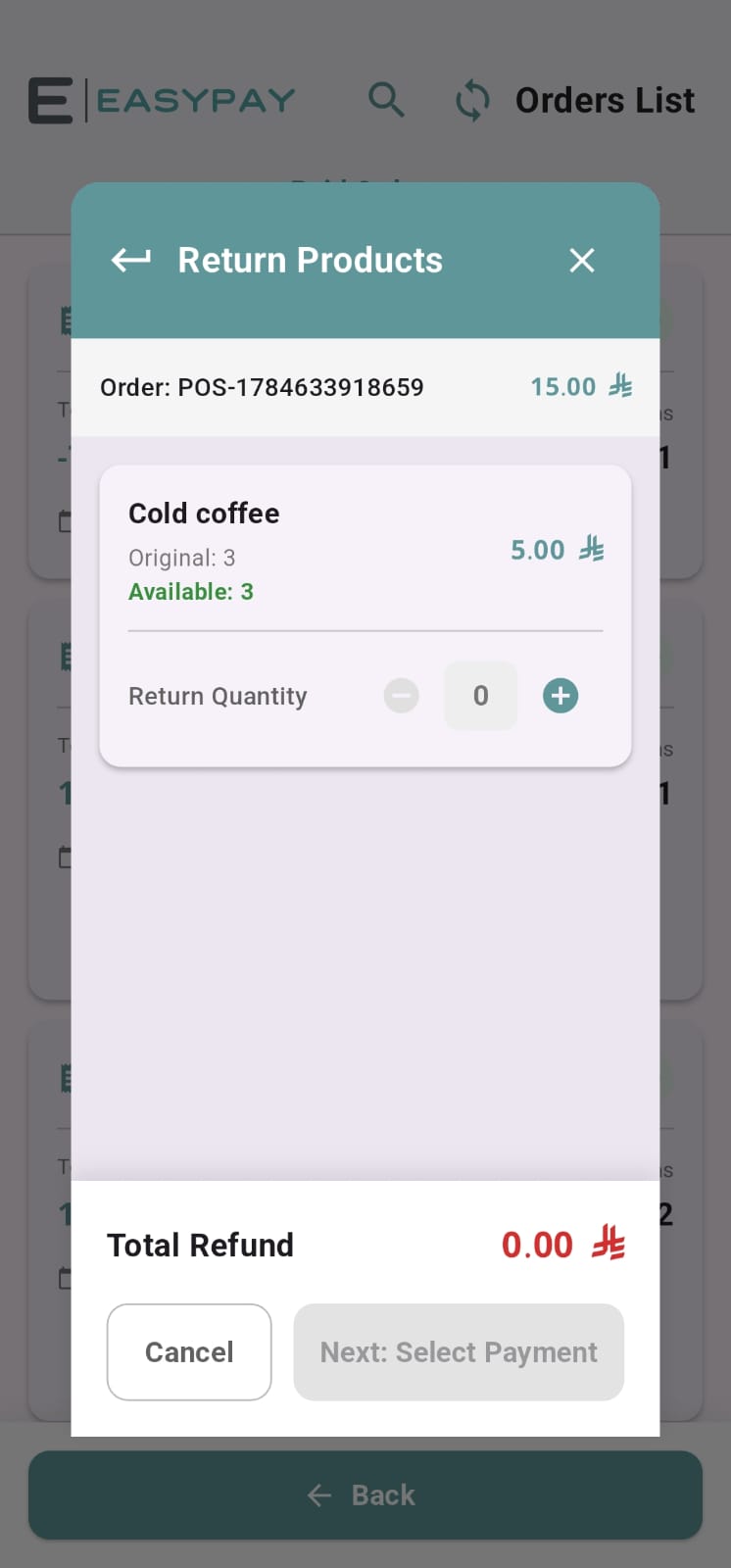
Choose “Return” from the invoice options.
Select the product(s) to return and the quantity, then tap “Next: Select Payment”.
Choose the refund method, then tap “Process Refund”.
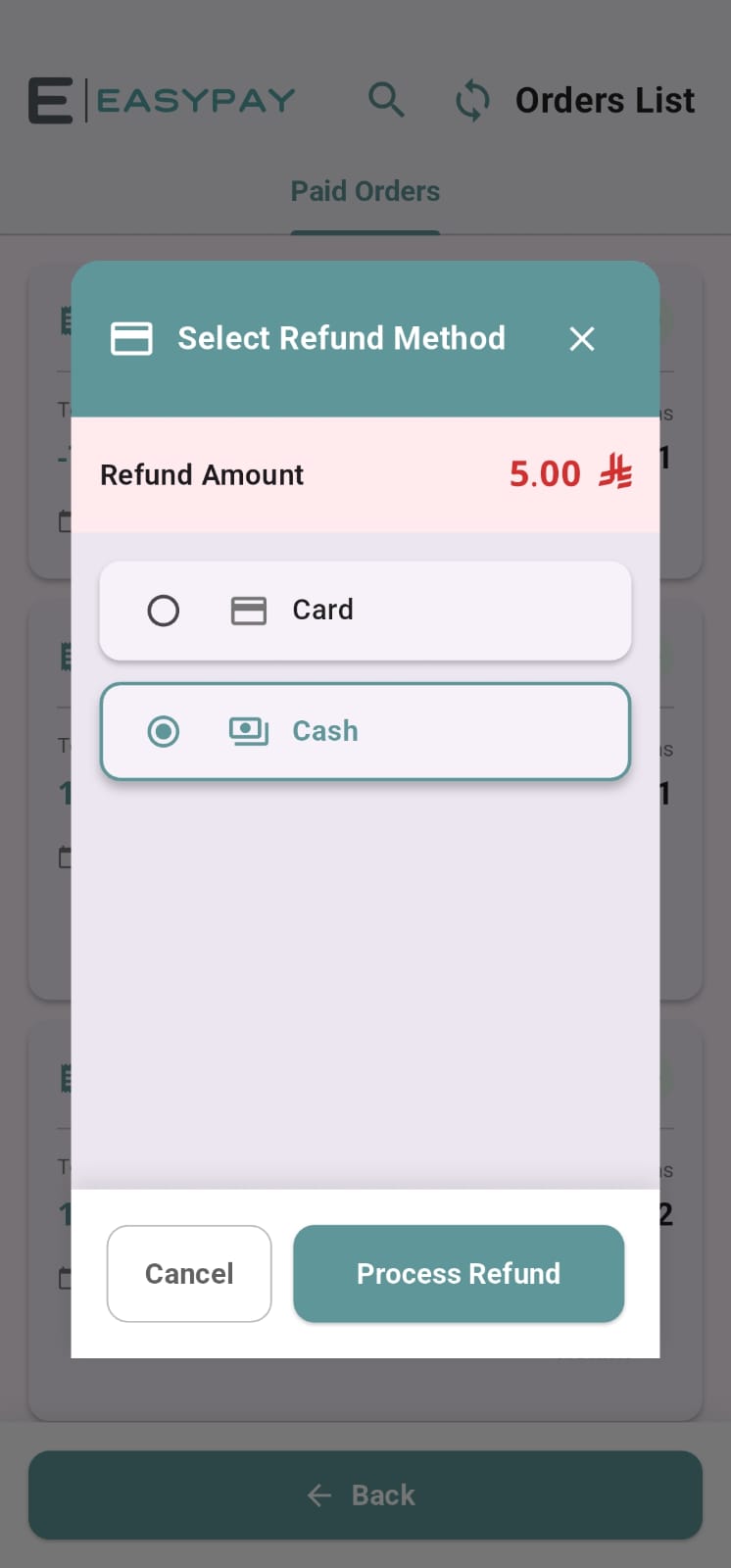
Confirm the refund amount and method in the final confirmation window.
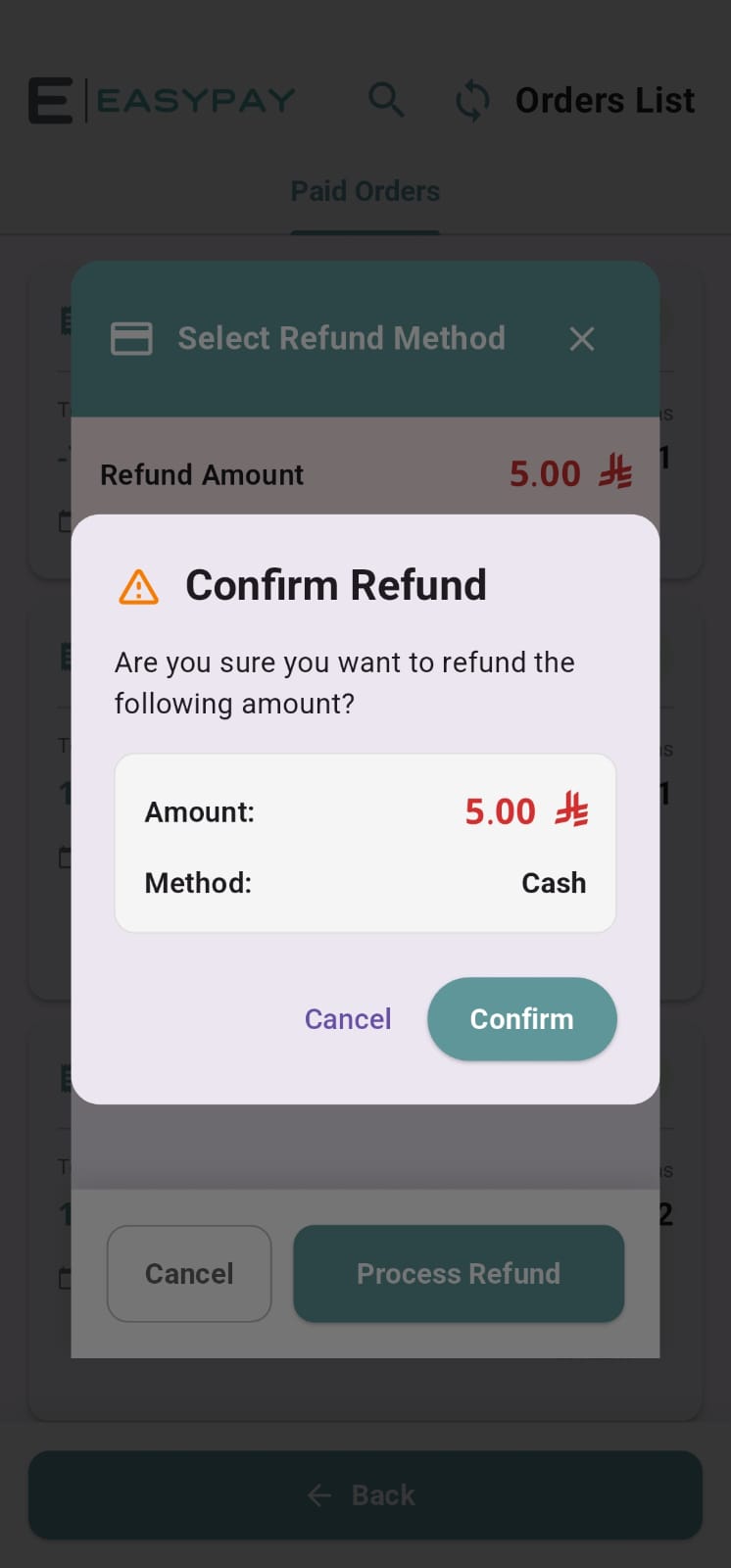
The system creates a return invoice linked to the original invoice as soon as it's confirmed.
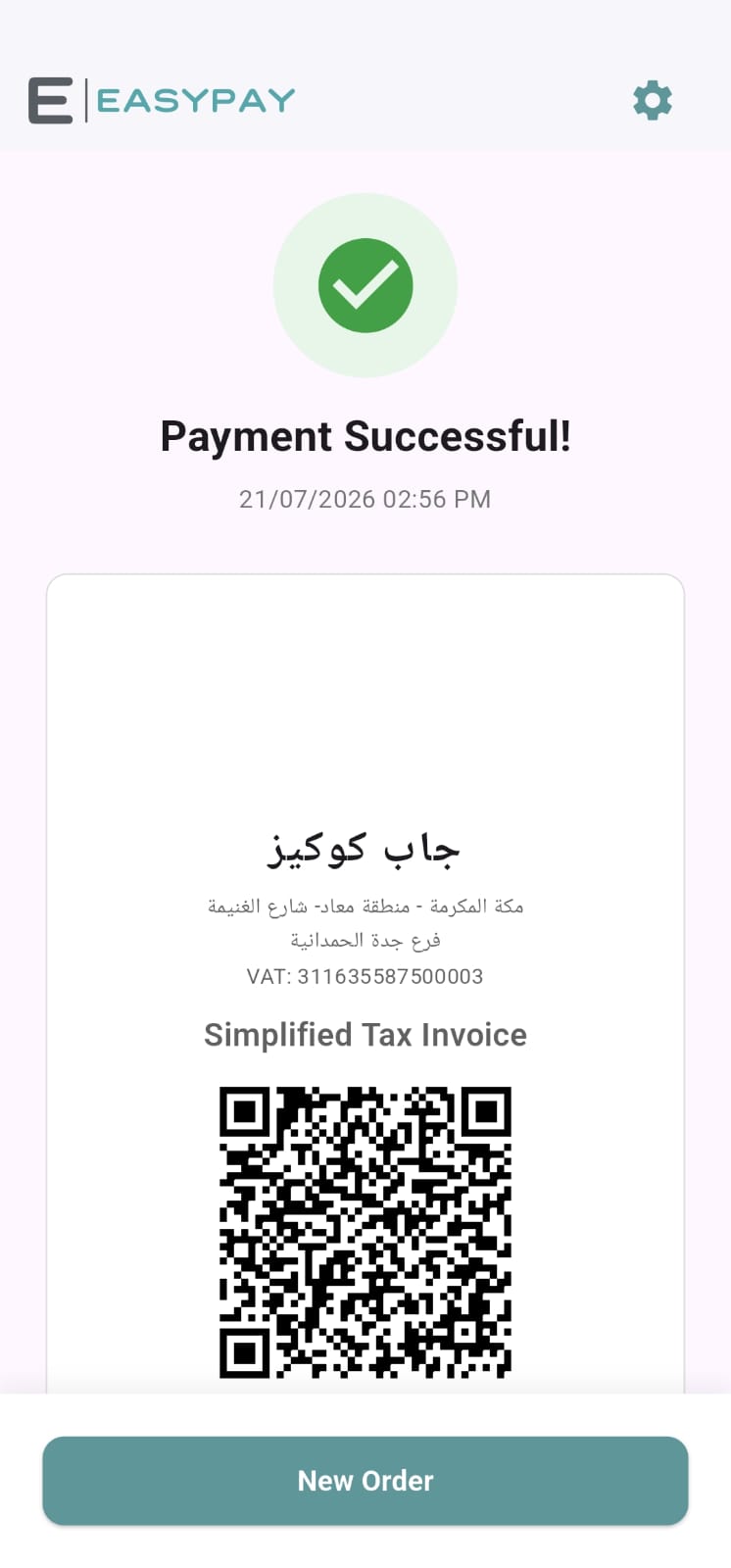
The return invoice's own details can be viewed at any time from the orders history, just like any sales invoice.
Key takeaways
Open the orders screen from the POS main screen to review the paid-invoice history.
Use the search icon at the top for quick access to a specific invoice.
Return a product: select the products and quantities, choose a refund method, then confirm the transaction.