

Printing a Previous Order Invoice
This guide documents how to go back to a previous order from the orders history in the POS and reprint its invoice.
1. Opening the orders list
From the POS main screen, tap the settings icon (⚙) at the top to open the side menu, then choose “Orders List”.
2. Opening the order details
Tap the required order from the list of paid orders to view its full details: order number, total amount, payment method, status, and items.
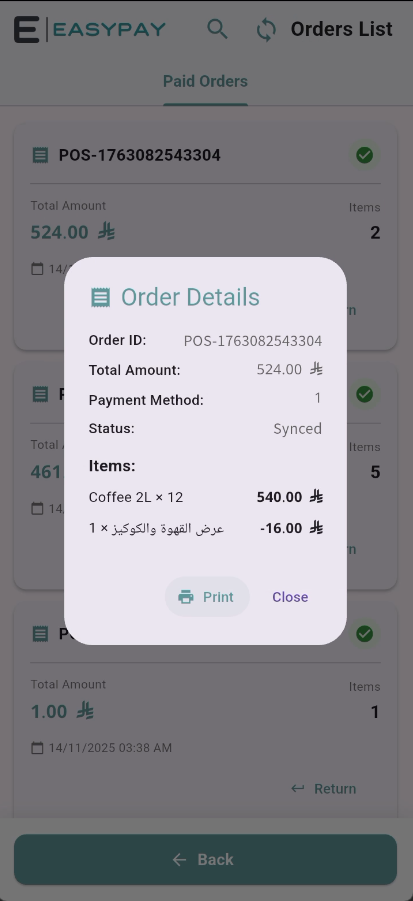
3. Printing the invoice
Tap the “Print” button inside the order details window. A confirmation message appears as soon as printing succeeds.
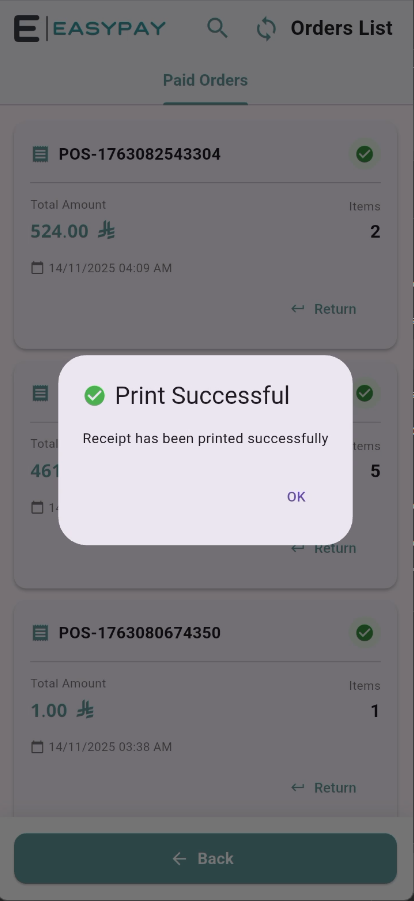
The invoice is reprinted in its original form, without affecting the order's data or status.
Key takeaways
Access the orders list via the settings icon on the main screen.
Open any previous order's details from the list to view its full data.
Reprint the invoice with a single tap from the details window.