

Opening & Closing a Session
This guide documents the steps to open a new POS session before starting work, and to close it and hand over the cash revenue at the end of the shift.
1. Opening a new session
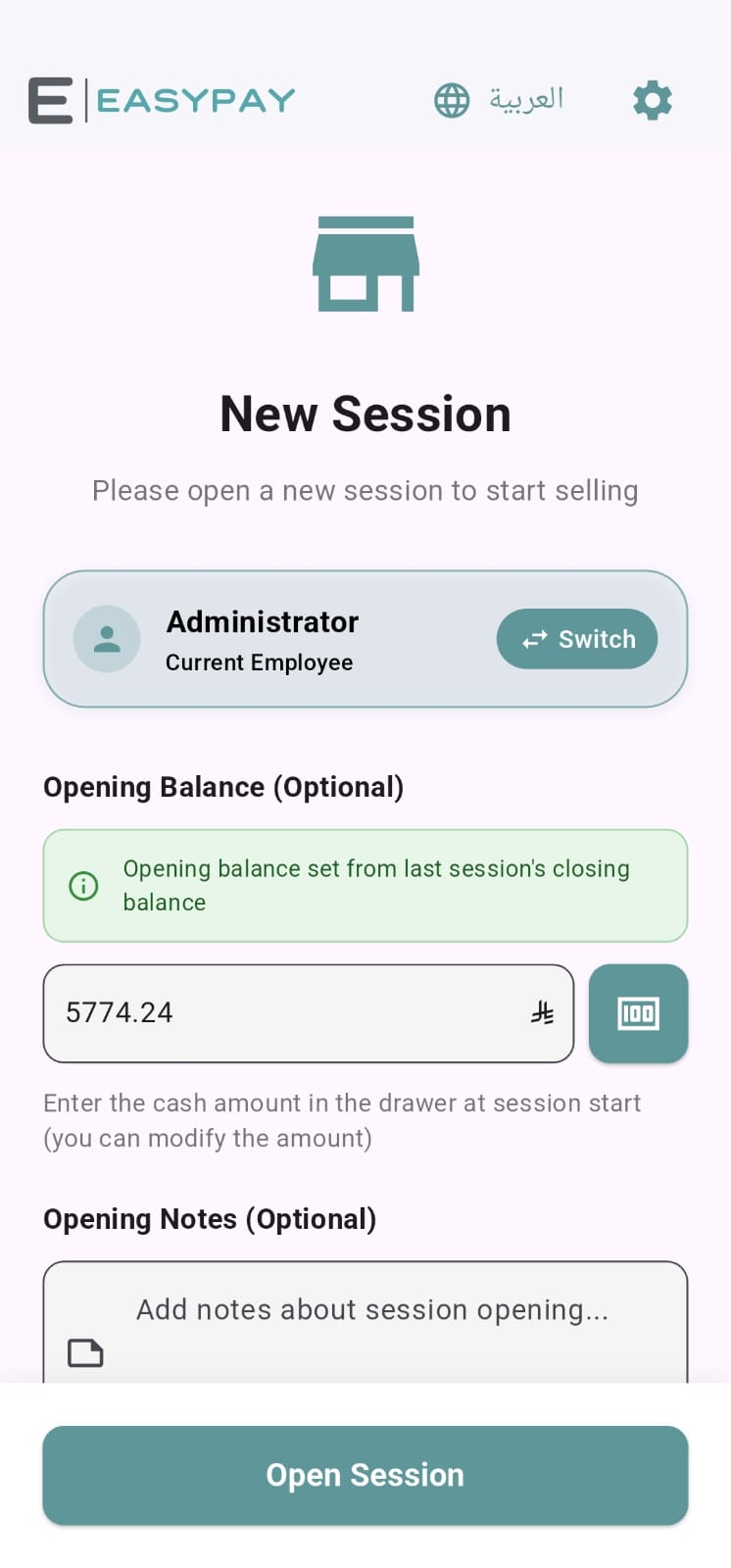
When logging in with no open session, a “New Session” screen appears automatically:
The opening balance is pre-filled from the previous session's closing balance, and can be edited.
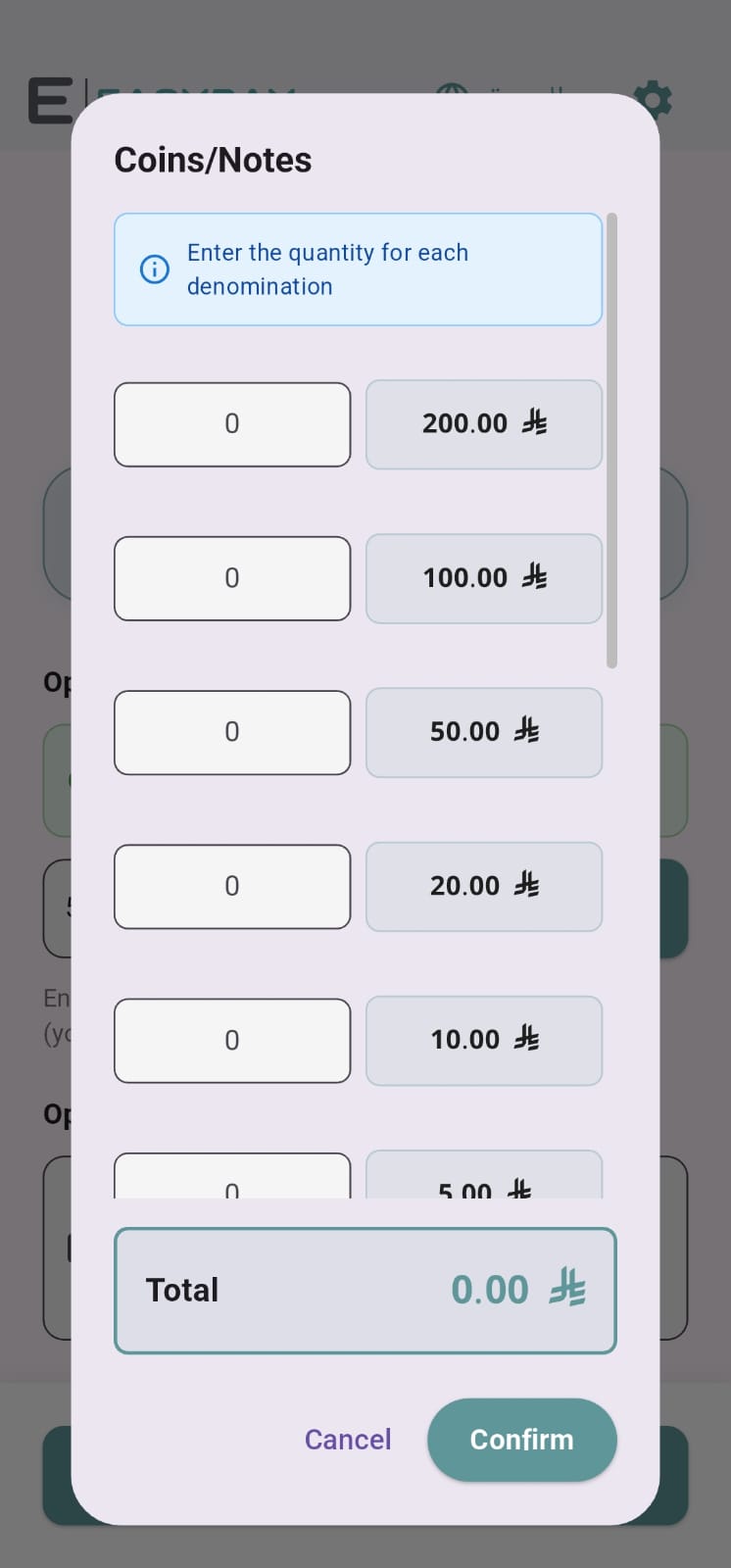
The amount can be entered manually, or via the coins/notes counter (the calculator button next to the field).
Opening notes are optional.
Tap “Open Session” to start.
2. Coins/notes counter
Instead of entering the total amount directly, the counter can be used to enter the quantity of each cash denomination (200, 100, 50, 20, 10, 5) — the system totals it automatically, which reduces manual counting errors.
3. Closing the session
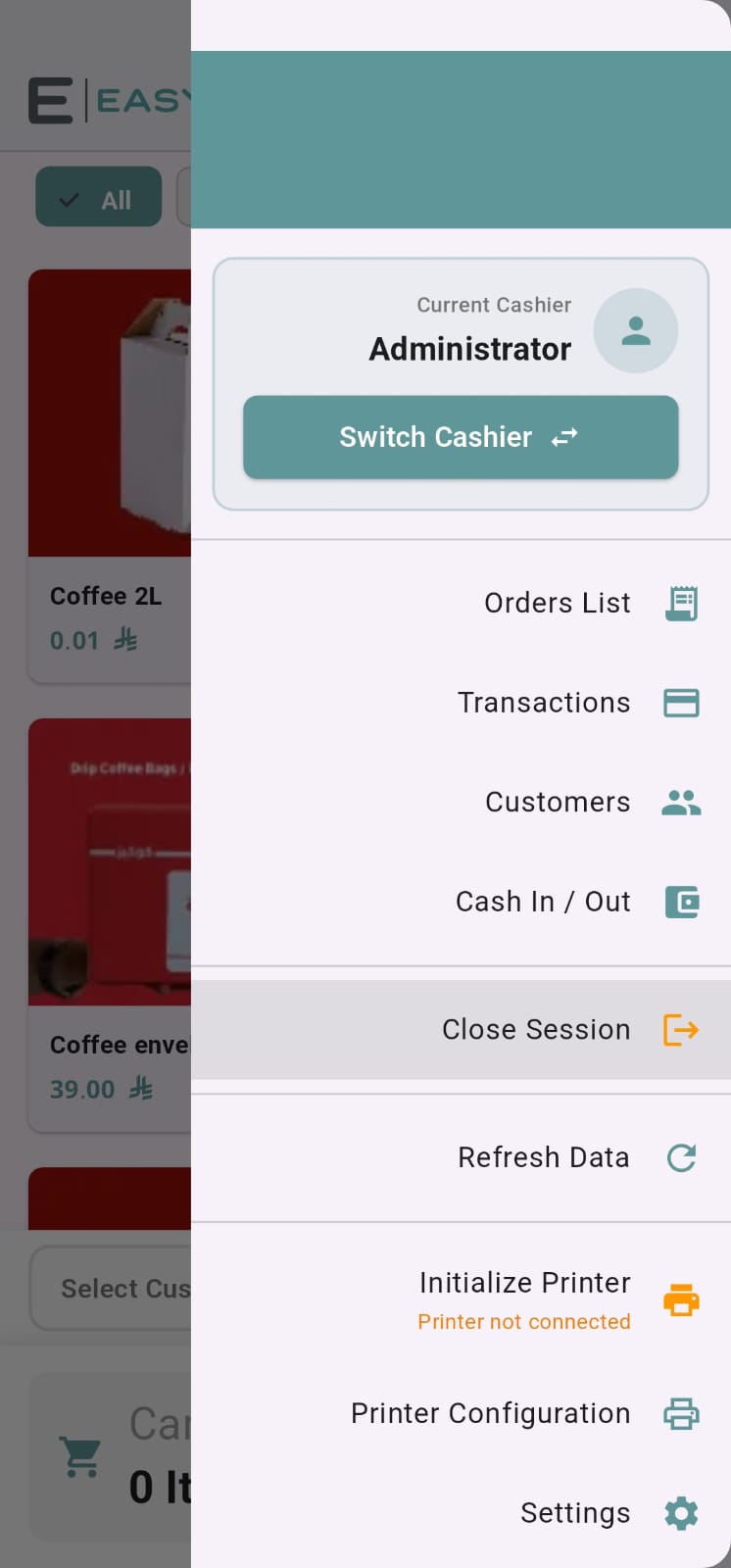
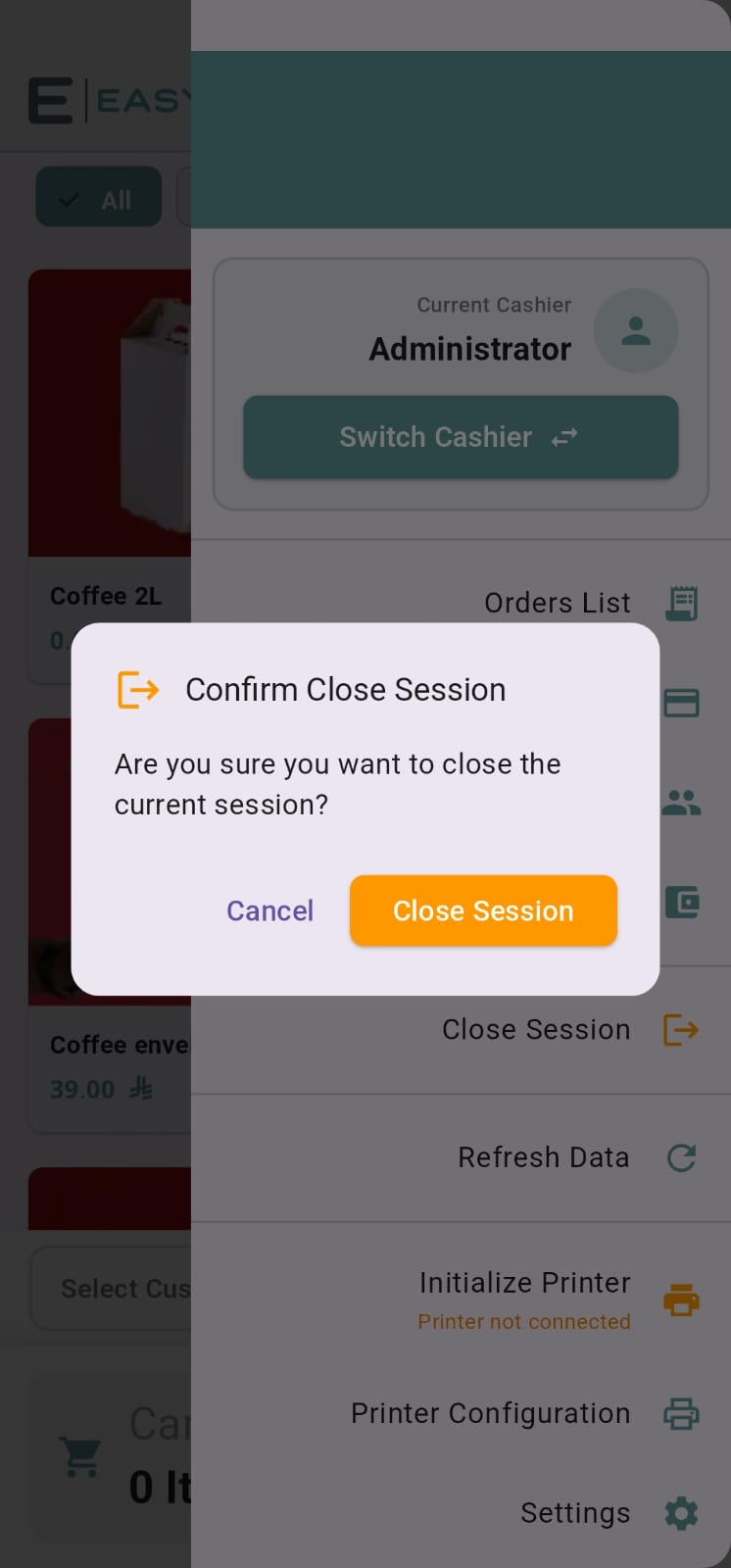
To close the session at the end of the shift, open the side menu (⚙) and choose “Close Session”:
The screen shows the opening balance and the theoretical balance (sales + cash in − cash out).
The “View Sales Report” button reviews the session's sales details before closing.
The “Reconcile” button automatically matches the theoretical balance to the actual balance.
Enter the actual cash balance in the drawer — the “Difference” from the theoretical balance appears instantly.
Add closing notes (optional), then tap “Close Session”.
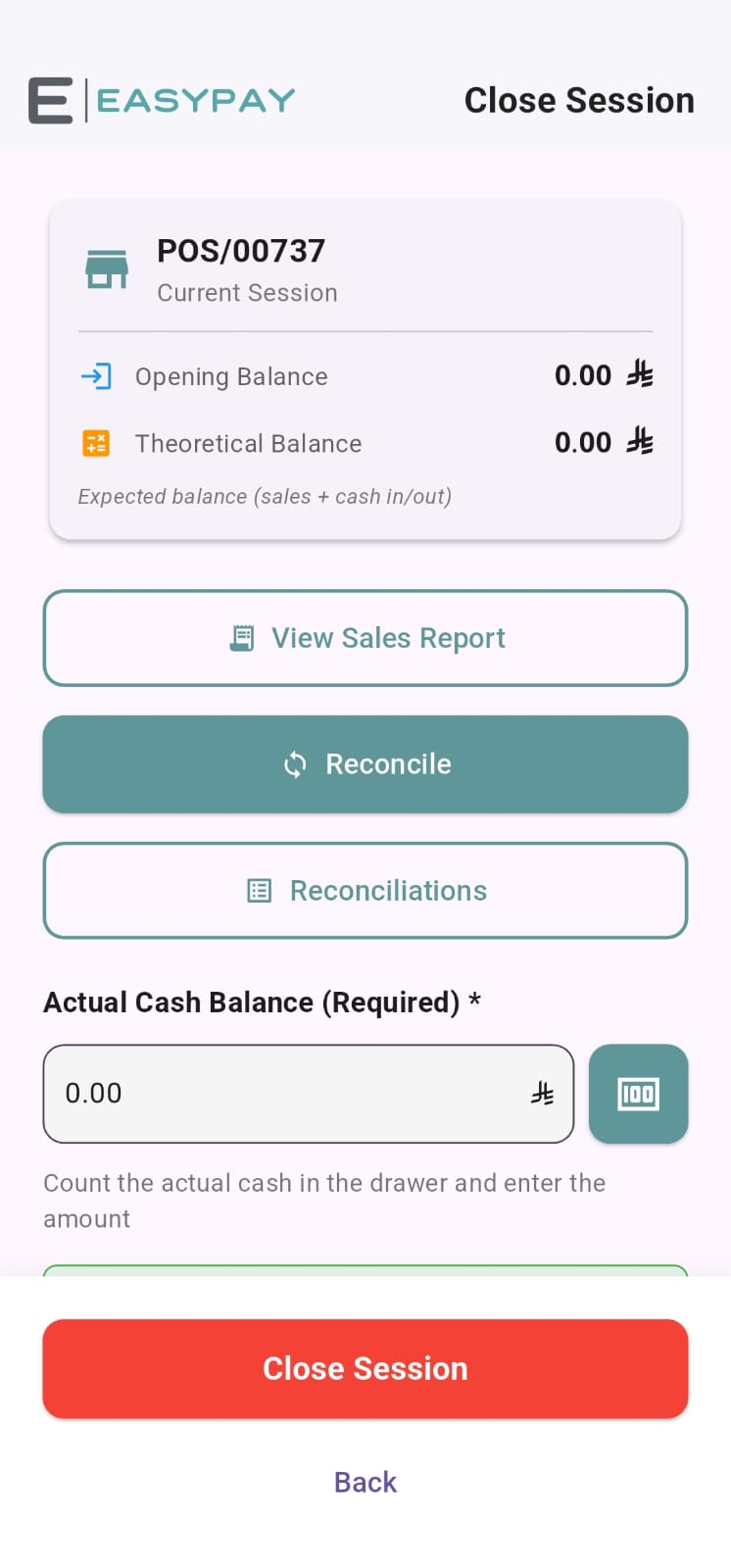
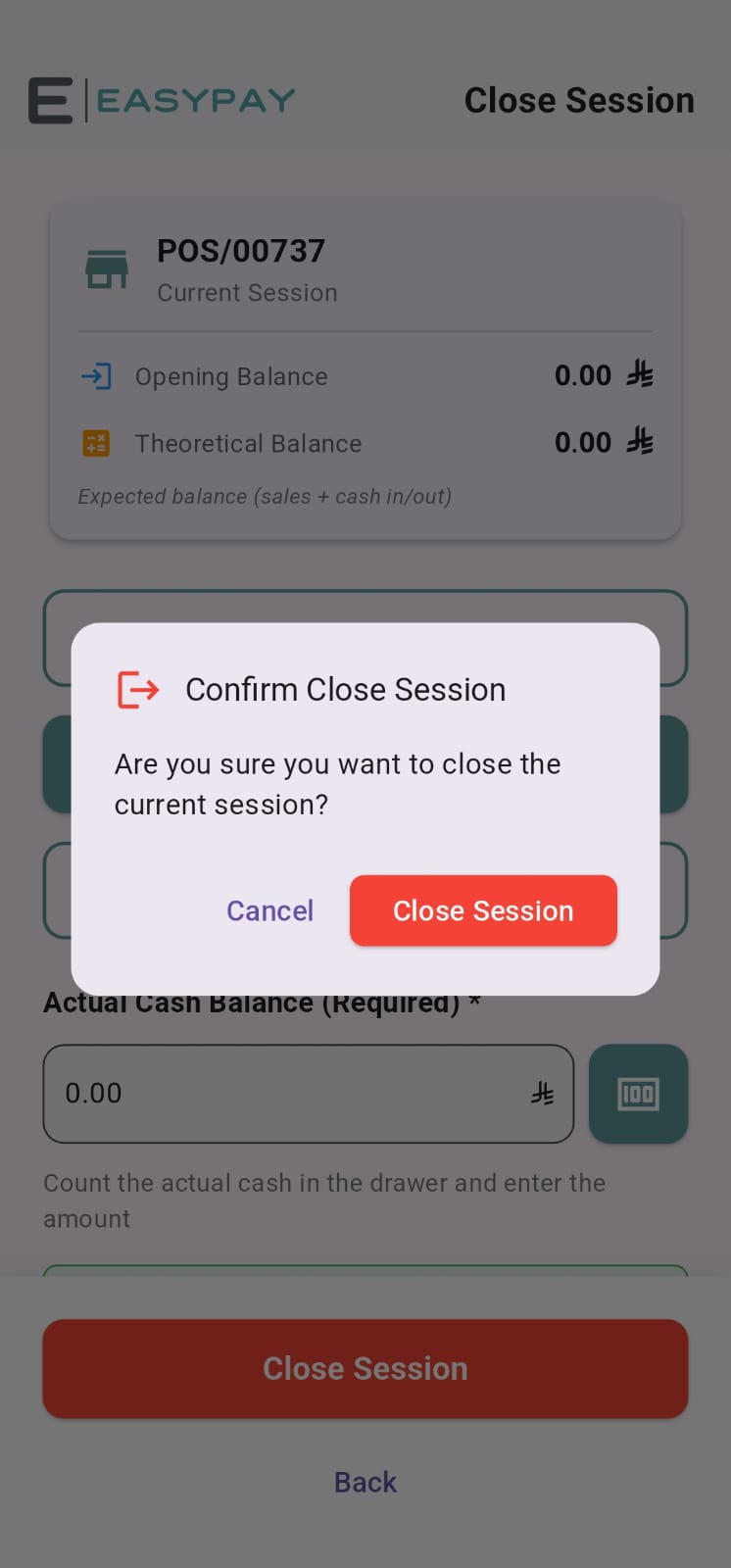
The “Close Session” button is final — make sure the actual balance matches before tapping it.
Key takeaways
A new session opens automatically when logging in with no open session, with an editable opening balance.
Use the coins counter to calculate the cash amount accurately by denomination.
Close the session from the side menu, matching the actual balance to the theoretical one and reviewing the difference before confirming.